Remote Control for RokuTV
EVOLLY.APPTools
4.24.53K Reviews
- Version
- 1.4.6
- Installs
- 5.00M
- Age Rating
- Everyone
Screenshots
Our Review of Remote Control for RokuTV
 Analysis by Appyee
I usually judge a phone remote by what happens after the first few evenings: does it become a useful backup, or just another app I forget about? Remote Control for RokuTV makes a persuasive first impression because it brings familiar television controls onto a device I already keep nearby. Its appeal is practical rather than mysterious: when the physical remote is out of reach, the phone can take over. Whether that convenience lasts depends on your Wi-Fi, your viewing habits, and how often you actually need the extra tools.
The first-week appeal: less searching, more watching
The quick win is easy to understand. You sit down, the Roku remote is missing, and your phone is already in your hand. Instead of searching the couch or interrupting someone else to find the remote, you open the app and try to control the TV from there. That kind of small rescue is the strongest reason to install it, and it is especially useful in a shared living room where the remote tends to wander.
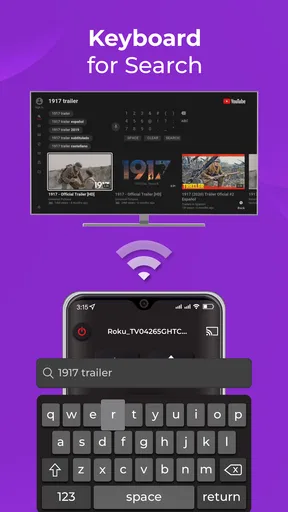
Text entry is another everyday advantage over tapping one letter at a time with a physical remote. When you want to search for a title, a phone keyboard can make the task less tedious. I would still keep the physical remote within reach at first, though: a phone remote is only helpful when the TV and phone can communicate over the network, so it is sensible to confirm the connection works in your room before relying on it during a movie night.
How it fits into an ordinary routine
Picture a late evening: one person is already settled on the couch, someone else is looking for the remote, and the TV is waiting on a search screen. Using the phone for text input can save several rounds of directional-button presses. Later, if the household is watching while another person sleeps, private listening may be useful, provided the feature works with your setup. These are specific moments where the app can earn its place without needing to replace the remote for every task.
It is also a handy fallback when you move between rooms or put the physical remote down somewhere unexpected. I would treat it as a backup that reduces friction, not as a guarantee that you can always control the TV. Keeping both options available is the more dependable habit: the phone helps when it is convenient, while the original remote remains useful if the network connection is unavailable or the phone is busy.
From novelty to a regular tool
I find the lasting value of a phone remote is less about using it for every button press and more about having it ready for the moments when the usual remote causes a little friction. Here, the keyboard and alternate controls give me a reason to keep it installed after the first-week curiosity passes. The next question is whether those occasional saves become part of a routine worth maintaining.
What makes it useful beyond the first few days
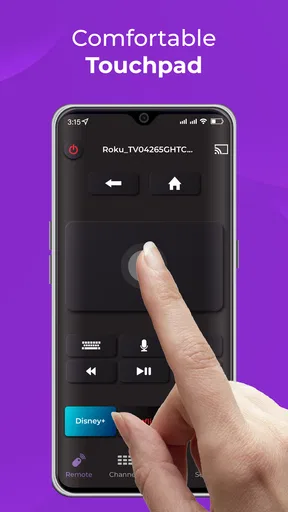
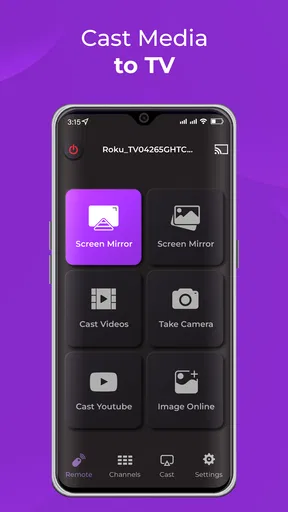
The app is a Tools app from EVOLLY.APP, and its central job is narrow: control a Roku TV from a phone. That focus is a strength if you mainly want a substitute for common remote tasks rather than a broader entertainment hub. Voice control, the touchpad, and the virtual keyboard offer different ways to navigate, so you can choose the one that suits the moment instead of using the same button-by-button method each time.
For example, a touchpad may feel comfortable when browsing casually, while the directional controls can be easier when you want deliberate, precise movement through a menu. A keyboard is most valuable during searches, but it is not a reason to reach for the phone every time you adjust playback. Choosing the right input for each task is what can make the app feel like a lasting convenience instead of a novelty you test once and abandon.
Where it sits beside the usual alternatives
Compared with a standard Roku remote, a phone offers a keyboard and the app’s additional controls, but it also depends on having the phone available, unlocked as needed, and connected appropriately. The physical remote is simpler for quick volume or navigation adjustments because it is a dedicated object you can pick up without opening an app. If you have a working remote and rarely type searches, replacing it entirely may not improve your routine.
Compared with other phone-based remote options, this app is most compelling when you want a straightforward Roku-focused tool. I would not choose it as a general remote for unrelated devices, nor assume that every function will behave identically across every Roku setup. If your main need is only basic navigation, the included physical remote may be enough; if you often search by title or want the convenience of phone-based controls, a companion app is easier to justify.
Maintenance, connection, and small sources of fatigue
The ongoing upkeep is modest, but not zero. The phone and television need a usable network connection for app control, so a Wi-Fi interruption can turn a smooth routine into a delay. If the TV does not appear, I would first check that both devices are on the expected network and that the television is available, rather than assuming the app is broken. This simple check can save time when a household has more than one network or a guest connection in use.
There is also the ordinary phone-battery trade-off. A physical remote has its own batteries, while a phone is shared with messages, calls, and everything else you do on it. If you regularly watch with your phone nearly out of charge, using it as the remote may be less appealing than reaching for the dedicated controller. And if you prefer keeping your phone away during a film, the app’s convenience can become a distraction rather than a benefit.
Voice control can help when typing or navigating feels slow, but speech is not always the best choice in a quiet room or a shared space. The original review experience noted occasional response lag, especially with voice commands, and network interruptions can affect control more generally. I would keep the keyboard and standard controls in mind as alternatives instead of treating voice as the one ideal way to interact.
What to expect before making it a habit
The app is free to install, has an Everyone age rating, and is listed at a 4.3 average from around 73,000 ratings, with more than 5 million installs. Those figures suggest that it has found a substantial audience, but they do not guarantee that it will suit a particular TV, network, or household routine. Its current version is 1.4.5, and it is available for devices running Android 6.0 or later.
Some in-app purchases range from $3.49 to $32.99 per item, so I would start with the free experience and decide whether the controls you actually use are enough before paying for anything. The key question is not whether extra options sound appealing, but whether they solve a recurring annoyance for you. If basic navigation and text entry cover your needs, there is little reason to spend just because a paid option is available.
One useful way to evaluate it is to try a short, ordinary routine rather than a feature tour: connect, search for something by typing, navigate a menu, and see whether the phone stays convenient while you watch. If the app repeatedly saves you from hunting for the remote, it has a clear role. If you only open it to test voice or swipe controls and then return to the physical remote, that is a fair sign that it may be better kept as an occasional backup.
Who will appreciate it—and who may not
I can see this being a good fit for households where the Roku remote gets misplaced, for viewers who search for titles often, and for anyone who wants a phone-based option available during quiet late-night viewing. It may also suit someone who likes having a touchpad or voice input as an alternative to the usual directional controls. The benefit is strongest when one of those needs comes up repeatedly, not just once.
I would hesitate if you expect a phone app to work regardless of network conditions, need a dedicated remote for every quick adjustment, or dislike using your phone while watching television. It is also not the best choice if your goal is to control a range of different devices rather than a Roku TV. In those situations, the supplied physical remote or another solution designed for broader device control may fit better.
Overall, the app earns lasting space most convincingly as a practical second remote, especially for text searches and moments when the original is missing. Its useful extras can make Roku navigation more flexible, while Wi-Fi dependence, occasional lag, and the need to keep a phone handy are real limits. I would install it, test it with my own setup, and keep it if it solves a recurring annoyance—not because every household needs to replace a perfectly good remote.
If you're anything like me, the remote control is perpetually lost between the couch cushions or it’s mysteriously vanished into thin air. Enter the Remote Control for RokuTV app, a lifesaver that transforms your smartphone into a handy remote control for your Roku device. I’ve been playing around with this app, and let me tell you, it’s quite the game-changer.
Getting Started with Ease
First off, setting up the Remote Control for RokuTV app is a breeze. After downloading it from the app store, I was up and running in just a few taps. The app automatically detects all the Roku devices in your Wi-Fi network, which means you don't have to fiddle with manual settings. It’s like magic—simple, straightforward, and no fuss.
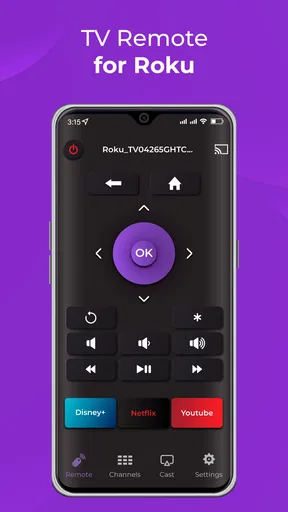
Once connected, the app layout mirrors that of a traditional Roku remote, making the transition seamless. The buttons are well organized, and everything is intuitively placed. No more squinting at tiny buttons in the dark! Plus, it even has a virtual keyboard for easy text input. Searching for your favorite shows has never been smoother.
Features That Stand Out
One of my favorite features is the voice control capability. Just press the microphone button, speak your command, and voilà! It’s responsive and surprisingly accurate. Whether you want to search for a specific movie or open an app, just say the word. It feels like living in the future.
The app also includes a touchpad feature, allowing you to swipe and scroll through menus effortlessly. This is perfect for those times when you want to browse casually without clicking through each option. It’s a little touch that makes a big difference.
Another cool feature is the ability to listen privately. Simply plug your headphones into your phone, and the app streams audio directly to you, ensuring you don’t disturb others. Late-night binge-watching sessions just got a lot more discreet!
Why You’ll Love It
With the app, there’s no battery to worry about. Unlike traditional remotes that seem to die at the worst possible moment, your phone is always charged and ready to go. Plus, it’s one less device to keep track of.
The app’s design is sleek and user-friendly. It’s clear that the developers put a lot of thought into making it as intuitive as possible. Whether you’re tech-savvy or not, you’ll find it easy to navigate.
A Few Quirks
While the app is fantastic, it’s not without its quirks. Occasionally, I noticed a slight lag in response time, particularly with voice commands. It’s not a dealbreaker, but it’s something to be aware of. Also, since it relies on Wi-Fi, interruptions in your network can affect its performance. But hey, nothing's perfect, right?
One thing to note is that some features are locked behind a premium version. If you’re like me and enjoy a fully unlocked experience, it might be worth considering. However, the free version is still incredibly functional and worth trying out.
Final Thoughts
Overall, it is a must-have for anyone who owns a Roku device. It offers a convenient and modern solution to the age-old problem of misplaced remotes. With its array of features and user-friendly design, it’s a solid addition to your app collection.
Whether you’re a tech enthusiast or just someone who loves a good binge-watch session, this app is sure to enhance your Roku experience. Give it a try, and you might just find yourself wondering how you ever lived without it!
Verdict
Strengths of Remote Control for RokuTV
- Easy setup with quick connectivity.
- Supports multiple Roku devices.
- User-friendly interface design.
- Voice search feature is convenient.
- Customizable remote buttons.
Limitations of Remote Control for RokuTV
- Ads can be intrusive at times.
- Limited features in free version.
- Occasional connectivity issues.
- Requires Wi-Fi connection.
- No personalized recommendations.
Other Releases by EVOLLY.APP
View All
TV Cast for Chromecast
Tools3.7

TV Remote - Universal Control
Tools4.2
Similar Picks in This Category
View All
Google LLC4.0

Gboard - the Google Keyboard
Google LLC4.5

Google Play services
Google LLC4.3

Google Play Store
Google LLC4.9

Files by Google
Google LLC4.5

SHAREit: Transfer, Share Files
Smart Media4U Technology Pte.Ltd.4.3
Frequently Asked Questions
What features does the Remote Control for RokuTV app offer?
The Remote Control for RokuTV app provides users with the ability to control their Roku TV using their smartphone. Features include channel navigation, volume control, and a virtual keyboard for easy text input. Additionally, the app supports voice commands and offers a customizable interface to enhance user experience.
Is the Remote Control for RokuTV app compatible with all Roku devices?
The app is designed to work with most Roku TV models and Roku streaming devices. However, compatibility might vary based on the specific model or firmware version. It's recommended to check the app description or developer notes for a detailed list of supported devices before downloading.
Are there any in-app purchases or subscriptions required?
The Remote Control for RokuTV app is typically free to download and use. However, some advanced features may require in-app purchases or a subscription. Users should review the app store listing for detailed information about any potential costs involved, ensuring they are fully informed before downloading.
How do I set up the Remote Control for RokuTV app with my device?
Setting up the app is straightforward. First, ensure your smartphone and Roku device are connected to the same Wi-Fi network. Open the app and follow the on-screen instructions to pair it with your Roku TV. The app should automatically detect nearby devices, allowing easy setup and connection.
What should I do if the app is not working properly?
If the app experiences issues, first ensure both your smartphone and Roku device are on the same Wi-Fi network. Restart the app and try reconnecting. If problems persist, check for app updates or contact customer support for troubleshooting assistance. Clearing the app cache or reinstalling might also resolve common issues.
